

Back to article
3328
Przerywany dźwięk z urządzenia
Jeśli dźwięk odtwarzany z urządzenia zostanie wcisany i wyciszany, odtwarzany w sposób niespójny lub brzmi niechlujnie, spróbuj wykonać następujące czynności:
Intermittent audio from product | Bose QuietComfort Ultra Headphones (2nd Gen)
Disconnect any secondary Bluetooth devices that may be connected to your Bose Product
When in multipoint, a secondary Bluetooth device could possibly receive a text/email notification and try to broadcast audio to your product. This could interrupt the primary Bluetooth connection/audio stream which effects Bluetooth bandwidth, causing intermittent audio or sporadic Bluetooth connections.
To eliminate any interruptions, we recommend turning off Bluetooth on your secondary device which is connected to your Bose product.
To eliminate any interruptions, we recommend turning off Bluetooth on your secondary device which is connected to your Bose product.
Clear your Bose product memory of previously-connected Bluetooth® devices.
Your Bose product remembers the last several devices it connected to so it can quickly reconnect to them. In case there is an issue with the device memory, clear it and then try to reconnect the device. For more info, see Clearing the product memory of paired Bluetooth® devices and Connecting a Bluetooth® device.
On the Bluetooth® device, remove all entries of your Bose product from the Bluetooth menu. Then, try connecting again.
In the Bluetooth menu of the Bluetooth device, you'll find a list of Bluetooth products that have been previously connected. Your Bose product might show up one or more times in the list (i.e. it might be listed a second time with "LE" in the name). Select each entry for your product and remove it by selecting Forget, Unpair, Delete or something similar. After, try connecting again. For more info, see Connecting a Bluetooth® device.
Check for and install any available product updates.
On a computer, visit btu.bose.com and follow the instructions to ensure your product has the latest features and enhancements. See Checking the software or firmware version and Updating the software or firmware of your product.
If you're experiencing intermittent audio during phone calls, check your cellular reception.
This issue may be caused by a weak connection to the cellular network. Enabling Wi-Fi calling in your phone's settings while connected to your home network can help, or you can try the call again once the reception improves.
Try playing different types of media.
Different media types might produce different quality sound. For example, Podcasts, music stored locally on your phone, MP3s, streaming music services (Spotify, Pandora), videos on your device or stored in the cloud, etc. can all vary in quality. Try different media to determine if the issue is specific to certain media.
Try a different app.
If the issue only occurs with a particular app, it is likely related to the app or app settings.
Reboot your headphones.
This reset will not erase your product settings.
- If the USB charging cable or audio cable is connected to your headphones, disconnect it.
- Connect a USB charging cable and charger to a power outlet. You can also connect the USB cable to a USB port on a computer that is powered on.
Note: Do not connect your headphones to the USB cable yet. - On your headphones, press and hold the Power/Bluetooth® button.
- While continuing to hold the button, connect the USB cable to the right earcup. The Power light on your headphones will quickly blink twice.
- Once connected, wait two seconds and then release the Power/Bluetooth button.
Tip: If your headphones don't respond after this, reset them a second time.
Reboot the connected device.
Electronics might need to be reset from time-to-time—much like rebooting a computer. Power off the device, then power it back on and try again.
If connected, bypass any adapters or extension cables.
If your product connects to the device using an extension cable or adapter, disconnect the extension cable or adapter to determine if the issue is related to it.
Try connecting a different Bluetooth device.
If your Bose product can connect to another device, Bluetooth functionality is working. In cases like this, the issue could be with the first device or its settings.
Try disconnecting other nearby wireless devices that might interfere with Bluetooth® signal.
Some wireless devices can cause interference with a Bluetooth signal.
Common examples include:-
Common examples include:-
- 2.4 GHz router
- cordless phone
- wireless speaker adapters
- home security motion sensors
- fluorescent lights
- microwaves
- wireless mice and keyboards
Try disabling the Multi-point connection in the app
If you find that notifications from your secondary device interrupt your listening experience on your primary device, you can turn off Multi-point.
In the Bose app, go to Settings>Bluetooth Connections and toggle Multi-point connection to 'off'. This will disconnect your secondary device.
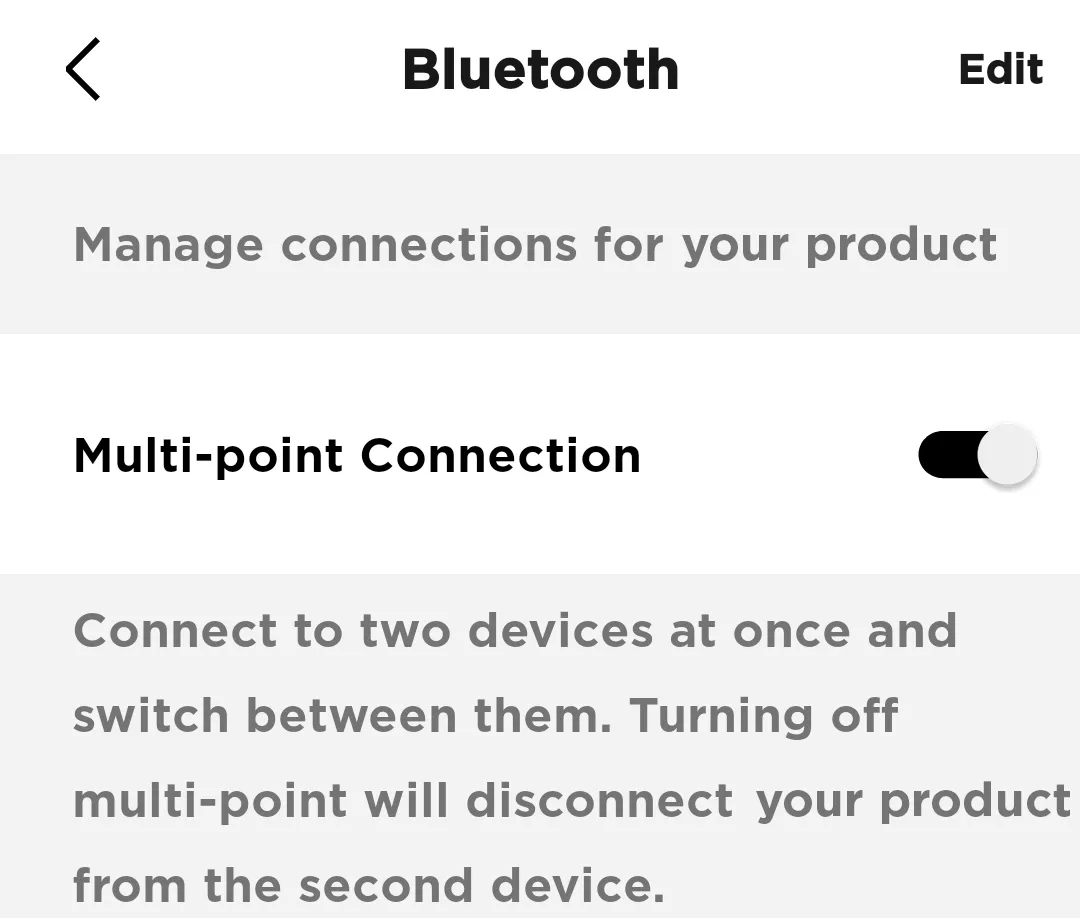
Note: You will only be able to connect to one device at a time. If you want to connect to two devices simultaneously, toggle Multi-point connection back to 'on'
In the Bose app, go to Settings>Bluetooth Connections and toggle Multi-point connection to 'off'. This will disconnect your secondary device.
Note: You will only be able to connect to one device at a time. If you want to connect to two devices simultaneously, toggle Multi-point connection back to 'on'
Czy ten artykuł był pomocny?
Dziękujemy za opinię.